
Voxsmith started as a Windows-only tool, built around PowerPoint’s COM API to attach ElevenLabs narration directly onto your slides — animations and all. COM is a Windows technology, so a literal port to Mac was never on the table. But a lot of you asked for Mac support, and “no” isn’t a great answer to give people who just want narrated audio out of a script.
So here’s Voxsmith for Mac: an ElevenLabs-powered text-to-speech tool that reads your PowerPoint, Word, Markdown, or plain text files and generates narrated audio, chapter by chapter. The one thing it doesn’t do is the Windows-only trick of writing audio back into the PowerPoint file itself — on Mac, Voxsmith reads your deck’s slide text and speaker notes, then hands you back finished audio files instead of a modified .pptx.
If you’ve got a script in .pptx, .txt, .md, or .docx format, Voxsmith for Mac will turn it into chapter-by-chapter narration using any ElevenLabs voice.
What You Need
- A Mac
- An ElevenLabs API key (the free tier works fine for trying this out)
- A script in
.pptx,.txt,.md, or.docxformat - Stage directions and notes don’t get narrated. Anything inside double angle brackets — like
<or> <— gets skipped entirely by ElevenLabs. Same goes for instructor or SME notes wrapped in double square brackets, like> [[ILT: ask the room about their experience]]. Useful if you’re repurposing an instructor-led script and don’t want to strip all that out by hand first. - No chapter markers in a Word/Markdown/text file? No problem — almost. Voxsmith needs at least one
[Chapter Title]line to know where to split. If it doesn’t find one, it’ll let you know rather than guessing.
Step 1: Write Your Script
How you mark up your script depends on what kind of file you’re starting with.
PowerPoint (.pptx)
Voxsmith reads each slide’s speaker notes directly — no chapter brackets needed. Each slide becomes its own narration segment automatically. If you’ve already got a deck with notes written out, point Voxsmith at it and it’ll work through slide by slide, just like the Windows version does before the attachment step. The difference on Mac is what happens after generation: instead of inserting audio back into the .pptx, Voxsmith hands you a folder of audio files, one per slide.
Word, Markdown, and Plain Text (.docx, .md, .txt)
For these formats, Voxsmith splits your document into chapters using one simple rule: put the chapter title on its own line, in square brackets.
[Introduction]
Welcome to the course. In this section we’ll cover the basics…
[Chapter One: Getting Started]
Let’s start by opening the application…
[Chapter Two: Advanced Features]
Now that you’ve got the basics down…
Every bracketed line starts a new chapter, and everything underneath it — until the next bracketed line — becomes that chapter’s narration. This works identically across .txt, .md, and .docx. Open Word, type your script, drop in [Chapter Title] lines wherever a new section starts, save as .docx, and you’re ready to go.
A couple of things worth knowing about your script:
Step 2: Point Voxsmith at Your File
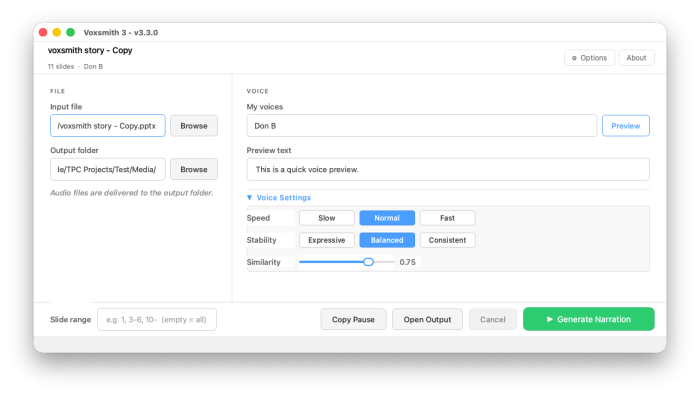
Open Voxsmith, drop in your ElevenLabs API key, and select your input document. Pick an output folder — this is where your finished audio files will land.
Step 3: Pick a Voice
Choose your ElevenLabs voice and dial in the settings — speed, stability, similarity. Hit preview if you want to hear a quick sample before committing to a full run.
Step 4: Generate
Click generate, and Voxsmith works through your document or deck one segment at a time, sending each chunk to ElevenLabs and saving the result as a WAV file in your output folder. One file per chapter or slide, named for easy sorting.
That’s the whole Mac workflow: PowerPoint, Word, Markdown, or text in — narrated audio out, no COM automation required.
Who This Is For
If you’re building eLearning modules, course narration, audiobook chapters, or any kind of long-form scripted audio — and you’d rather not babysit ElevenLabs’ web interface one chunk at a time — this is built for you. Write once, mark your chapters (or just point it at your deck), generate the whole thing in one pass.
Voxsmith for Mac is available now. If you’re on Windows and want full COM-based narration — audio attached directly into your .pptx, animations preserved — that workflow is still very much alive and getting updates. The Mac version is an addition to the Vox Suite lineup, not a replacement for it.
Questions, feedback, or a script that breaks the parser in some interesting way? Reach out — I’d love to hear about it.