

A few weeks ago, I scrolled upon a person extolling the virtues of Focus Mode on iPhone, especially setting up a focus called dumb phone. No media, no notifications. Nothing. There weren’t any screen shots, or details, or even a particular use case, still, the idea of this intrigued me greatly.
So much so, that after 1 too many weeks of super angry internet, I decided to set it up for myself! What I have done is created a focus where the Home Screen is nothing but stock apps that I use, plus
. My regular notification rules apply to the apps, which is fine. However, the magic is that no other apps are allowed notifications. None. Of. Them. Easily accessible from the Home Screen with a long press and a swipe, this has been really nice for me.
I’m getting so much value out of this, that I wanted to write it up and share it. This is like a recipe I guess. Fun!
iPhone Dumb Phone Focus Mode
This isn’t a tutorial on using
on IOS. That link is a great place to start if you are new to this feature.
Start in Settings -> Focus
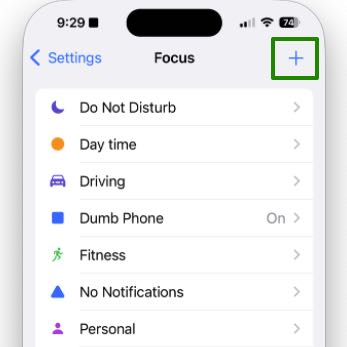
You might have a few here already. We are going to create a new one, so click the + in the top right.
At some point, you could come back to any of these and play around. I’ve also created one of these for fitness, and it’s equally great! Launches automatically when I start a workout and everything!
Create a new Focus
When you are prompted for what you want to focus on, choose custom and give it a name that makes sense to you. Pick an appropriate icon and color. The paws are fun!
Customize the Focus
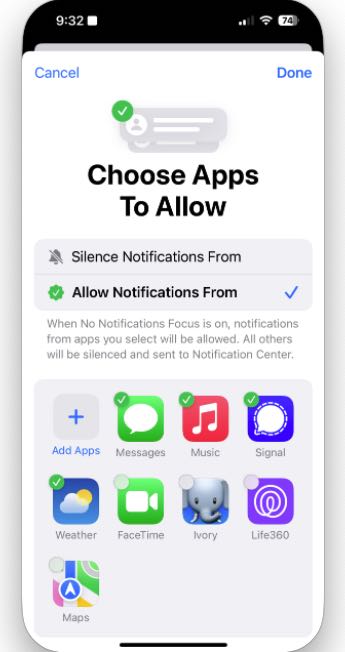
After you click the Customize Focus button, you are presented with your options panel for this new focus mode. You can edit the name, include or exclude people and apps, plus customize the screen and more. I recommend starting with apps.
The easy way to do this is to choose the apps you want to allow notifications from. For me it’s is the stock apps I use plus signal. If you link, you can also select people to allow from, to ensure you don’t miss anything. Don’t add your media sites or anything that’s noisy. Important notifications only. I limit this to Messages, phone, email and Signal. That’s it.
Finishing it off
Select a background for the focus screen and an app layout for those you want to see on your Home Screen. You can schedule this if you like, or set up some filters for this (like turning on dark mode, for example).
That’s it. Once completed, you can access this by long pressing on your Home Screen to select to this Focus Mode.
I’m not using a the media sites much these days, even when I didn’t, none of them were allowed access to notifications. For me, this is really more of a visual reminder for me to put the phone down and find something else to do. Keeping it very quiet is just a bonus!